


My notes are not in a chat. They live in an Obsidian vault on my own machine, in plain text, backed up with git. That vault is the source of truth for my whole business.
The problem with that setup used to be obvious: my AI tools could not see any of it. I would copy a note into a chat, get an answer, and copy the result back by hand. An Obsidian MCP server is what closes that gap.
This is the practical version, from someone who runs his AI operating system inside Obsidian. What an Obsidian MCP server actually is, how to set one up, what it can do, and the guardrails that keep it from wrecking your notes.
What is an Obsidian MCP server?
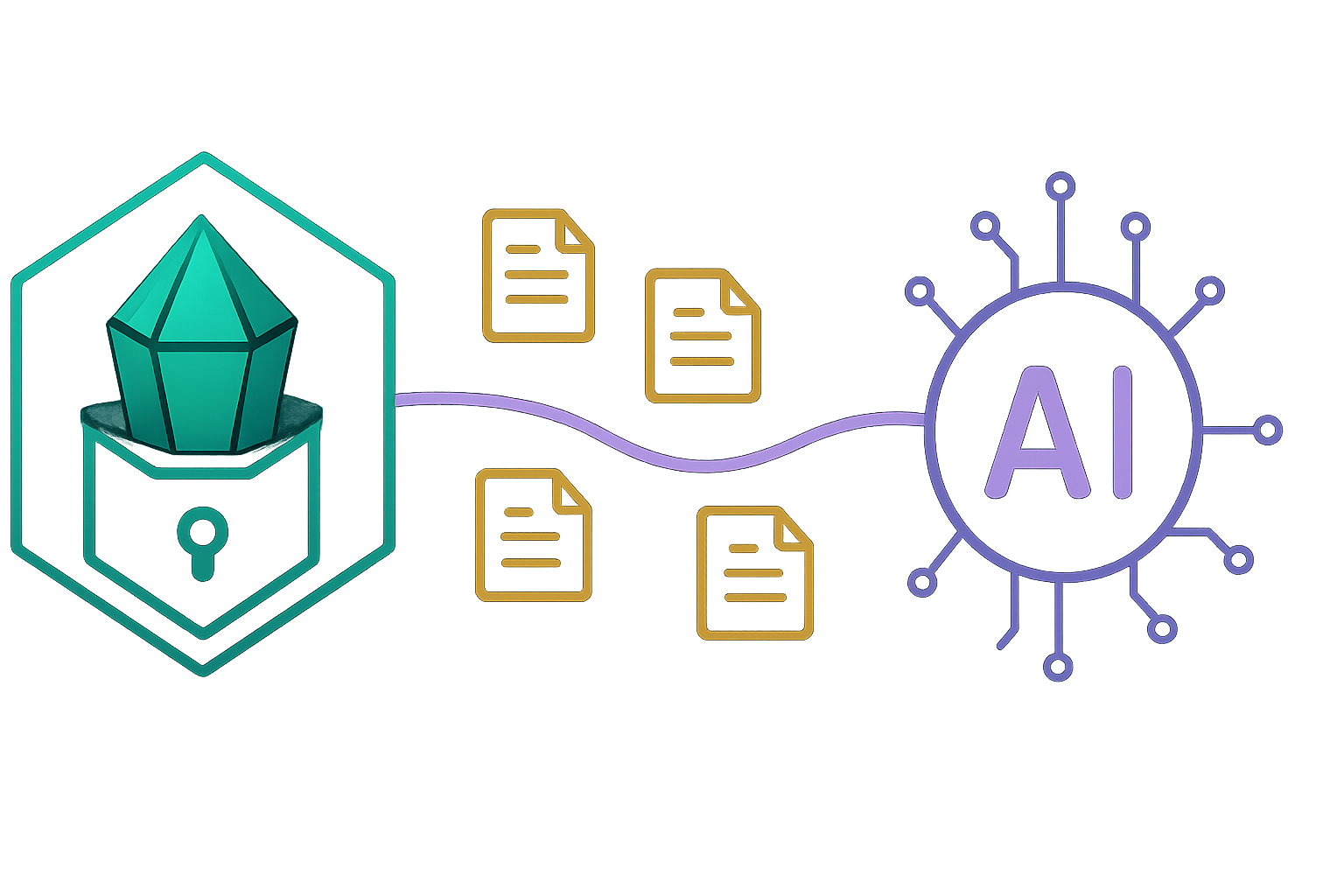
An Obsidian MCP server is a small bridge that lets an AI like Claude read and write notes in your Obsidian vault. MCP, the Model Context Protocol, is the open standard that lets AI tools talk to outside data, and an Obsidian MCP server is the piece that speaks for your vault.
The setup has three parts. Your vault sits in Obsidian. A community plugin exposes that vault over a small local connection. And the MCP server sits in the middle, translating between Claude and that connection.
When Claude needs a note, it asks the MCP server, the server asks Obsidian, and the answer comes back. Nothing leaves your machine to make that happen, because the whole chain runs locally.
Why connect Claude to Obsidian at all?
Because a chat forgets and a vault does not. If your real knowledge lives in notes you own, the most useful thing an AI can do is work directly in those notes instead of in a throwaway conversation.
For me that means an assistant can read my project context, pull the right reference note, draft into the vault, and update a log, all without me playing copy-paste middleman. The vault stays the single source of truth, and the AI just works inside it.
That is also the safer pattern in general. I keep everything important out of the chat and in files I control, so connecting the AI to those files, rather than to a chat that can vanish, is the whole point.
If you would rather work with an assistant inside Obsidian, my Obsidian Copilot V4 guide compares that approach with a direct MCP connection.
How do you set up an Obsidian MCP server?
There are three steps, and none of them require writing code.
First, install the Local REST API plugin in Obsidian. Obsidian has no built-in API, so this community plugin is what exposes your vault. Open Settings, then Community plugins, search for Local REST API, install it, enable it, and copy the API key it gives you.
Second, pick an MCP server. The two common ones both talk to that plugin: mcp-obsidian by MarkusPfundstein, a Python server run with uvx, and obsidian-mcp-server by cyanheads, a Node version run with npx. Either is fine; pick the one that matches the runtime you already have.
Third, add the server to your AI client’s config with your API key. In Claude Desktop that means editing the config file and pasting in the server entry with the key, host, and port. Save, restart, and Claude can reach your vault.
If you want a wider view of what else is worth connecting once this one works, I keep a running list of the best MCP servers for Claude Code, and a companion piece on building a prompt manager for the instructions you end up reusing across all of them.
If you have wired up any other local MCP server, this will feel familiar. It is the same shape: a plugin exposes the data, a small server bridges it, and your client config points at the server.
What if it will not connect?
Most first-time setups fail in one of a few predictable places, so it is worth knowing where to look before you give up.
The usual culprit is the API key or the port. The Local REST API plugin runs on a specific port, and the key in your client config has to match the key in the plugin settings exactly. One stray character and the handshake fails silently. Copy both again rather than trusting your eyes.
The second is the runtime. The Python server needs uvx available, the Node server needs npx, and if your client cannot find the command on its path, the server never starts. Running the command once by hand in a terminal tells you fast whether the tool is actually installed.
The third is simply forgetting to restart. AI clients read their config at launch, so a server you just added will not appear until you fully quit and reopen the app. When in doubt, restart before you debug anything fancier.
What can it actually do?
Once connected, an Obsidian MCP server gives Claude a handful of real abilities in your vault.
It can list your files and folders, so the AI can see how your notes are organized. It can read the contents of a note and search across the whole vault for a term or topic. And it can create new notes and modify existing ones.
That last part is the powerful one and the risky one. Reading is harmless. Writing means the AI can change or overwrite your actual notes, which is exactly why the next section matters.
What do I actually use it for?
The abstract list of abilities matters less than what they add up to in practice, so here are the jobs it actually earns its place doing.
The first is grounded answers. Instead of asking an AI a question cold and getting a generic reply, I can ask it something about my own business and have it read the relevant reference notes first. The answer comes back shaped by my real context, not the internet’s average.
The second is drafting straight into the vault. When I want a new post or a planning note, the AI can create the file in the right folder, write a first pass, and leave it there for me to review. No copy-paste, no separate document that drifts out of sync with everything else.
That same drafting habit is most of the reason I also automated the publishing side. I walked through the actual setup in automating WordPress with n8n, including how to add an OpenAI API key to an n8n node for the steps that need a model call outside Claude itself.
The third is upkeep. A vault rots without maintenance: dead links, stale facts, notes that contradict each other. An AI that can search and read the whole vault is good at spotting that drift and proposing fixes, which is tedious work I would otherwise never do.
Obsidian MCP server vs pasting notes into a chat
You might wonder why this beats just pasting a note into a chat when you need it, and for a single quick question, it does not. Pasting is faster than any setup.
The difference shows up at scale. Pasting works for one note you already know you need. An Obsidian MCP server is for the cases where the AI has to search to find the right note, read several, and write the result back, all without you acting as the courier. Once you are doing that more than occasionally, the manual version stops being worth it.
What is the catch?
An Obsidian MCP server can write to and delete from your vault. That is the feature, and it is also the thing that can hurt you if you are careless.
So treat your vault like code. Mine is backed up with git, so every change the AI makes is a diff I can review and undo. Without version control, an AI that edits the wrong note has just quietly rewritten something you cannot get back.
I also keep the AI on a short leash for writes. It drafts and proposes freely, but anything destructive waits for my yes. Connecting an agent to your notes is only a good idea if you can see and reverse what it does.
Does it send my notes to the cloud?
This is the question people ask first, and it is the right one, because the whole appeal of Obsidian is that your notes are yours.
The connection itself is local. The Local REST API plugin and the MCP server both run on your own machine, and the bridge between them never leaves it. That part involves no cloud at all.
The honest caveat is the AI on the other end. When Claude reads a note through the server, the text of that note becomes part of what you send to the model to get an answer, the same as if you had pasted it into a chat. So the wire is local, but the content you ask the AI to work with still goes to the AI. If a note is too sensitive to put in any AI chat, do not point an agent at it either. For everything else, you keep the vault, you keep the files, and you control exactly which notes the AI is ever asked to touch.
That ownership question is worth thinking through before you build the vault in the first place. I compared the options directly in Anytype vs Obsidian, covered the broader case for a second brain built for AI, and if you want your notes reachable from more than one machine, walked through how to set up a remote Obsidian vault.
Is it worth setting up?
If Obsidian is where your real work lives, yes. The moment your AI can read and write your vault directly, it stops being a clever chatbot and starts being something that works inside your actual system.
If you only use Obsidian for the occasional note, probably not. The setup is small, but the payoff scales with how much you actually live in your vault.
For me it was an easy call, because the vault is the center of everything. An Obsidian MCP server is just the wire that finally connects my AI tools to the place my work already lives. Get the wire right, keep git behind it, and let the AI work where your notes actually are.




I really like your blog.. very nice colors & theme. Did you
make this website yourself or did you hire someone to do it
for you? Plz reply as I’m looking to create my own blog and would like to
know where u got this from. kudos
Thanks, I really appreciate that! The blog runs on WordPress, and I built and customized it with help from AIOS, my own AI workflow system. It helps me organize and work through projects like this website.
I’m still developing AIOS, but if you’re interested, you can learn more and sign up for updates on the AIOS page located at https://softdev23.com/aios/. Thanks for stopping by, and good luck with your blog!